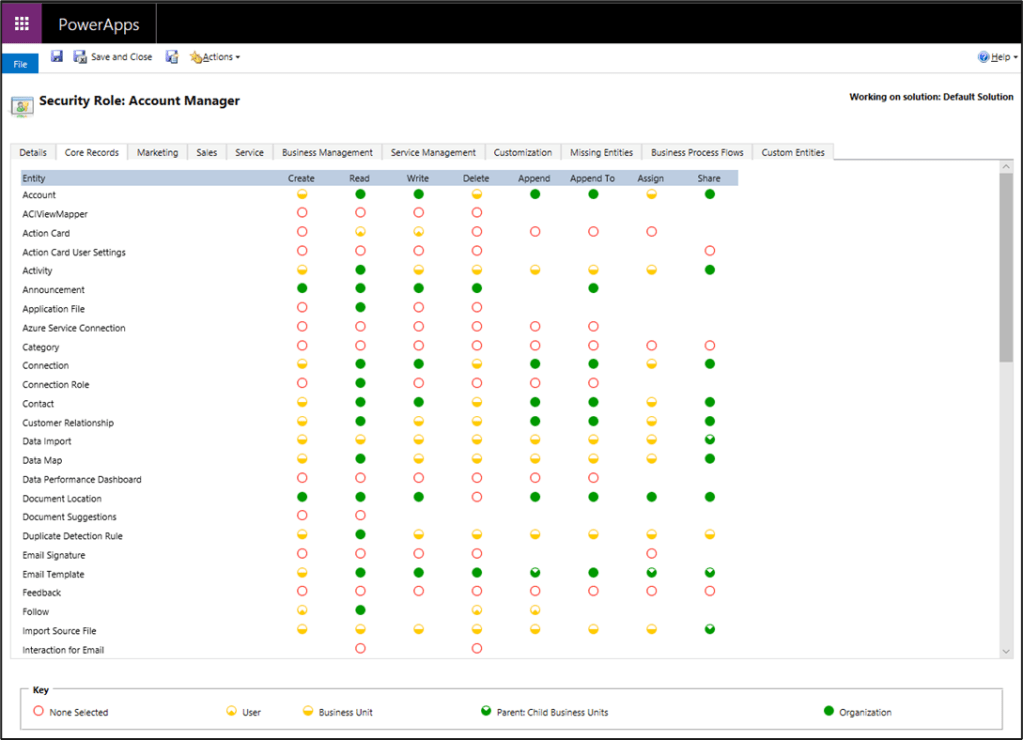
The screenshot above may be familiar to you. For the 10 years I’ve worked with Dynamics 365 CRM (yes, I still call it CRM) and Dataverse, the way we create and edit security roles has been the same. This has now changed! There’s finally a new way of doing security roles! One that doesn’t look like it’s a blast from the past.
To find it you go to your environment -> settings -> security roles and opened a security role.
As you can see in the screenshot below, there’s a new and modern way of doing this. The top menu stays even when you scroll down! This is probably one of the most annoying things with the old way of doing it, so glad they’ve listened to the feedback and locked it!
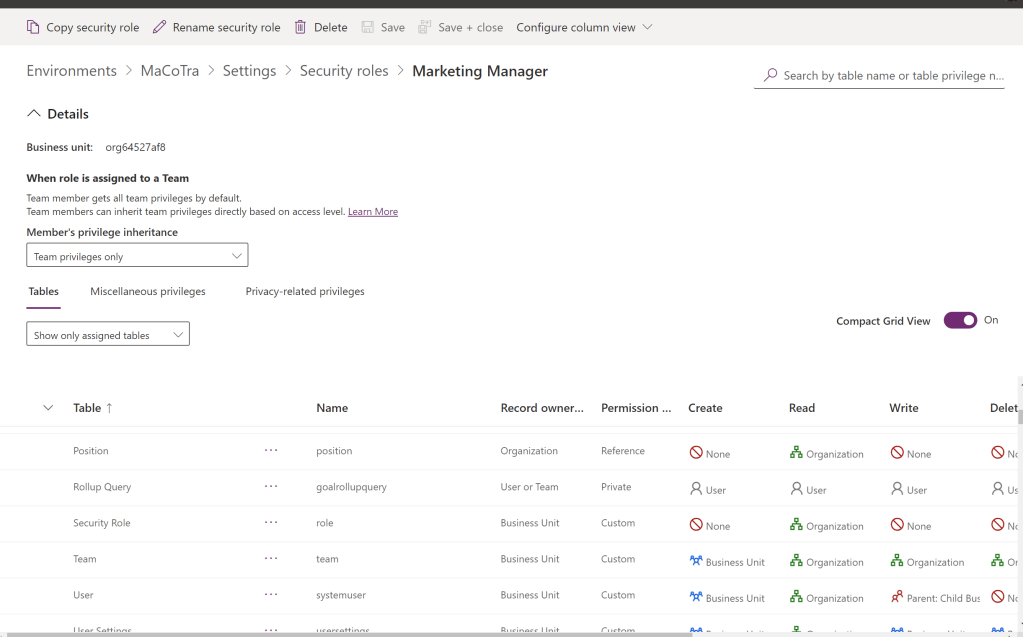
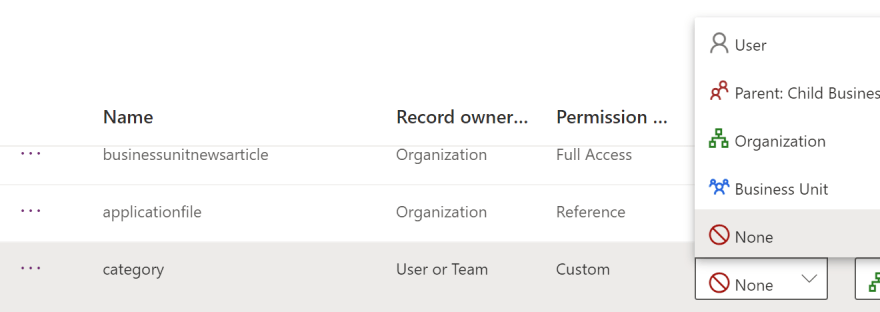
There’s no more clicking on circles and remembering which row is the create, read, write etc, and which colour of the circle is owner, organisation etc. Now you click on the table and choose the level of access with some nice new icons and a description on all of them.
The different access you can get on each table depends on the ownership of the table. If the ownership is “Owner or Team” you get the full list as shown in the screenshot below. If the ownership is “Organisation” you get the choice of None or Organisation.

This is such a huge improvement and will make it a lot easier to use and explain the security model for new consultants and customers.

 Malin Martnes
2 thoughts on “New security roles admin”