
In this post, we’ll go through the three topics of the Microsoft Power Query:
- Select tables and columns
- Resolve data inconsistencies, unexpected or null values, and data quality issues
- Evaluate and transform column data types
In my previous post. I connected to GA and got an error message because I got null values back. This shows that you can’t set up the Power Query to read blank rows, your data needs content, which makes sense, you need data to connect to.
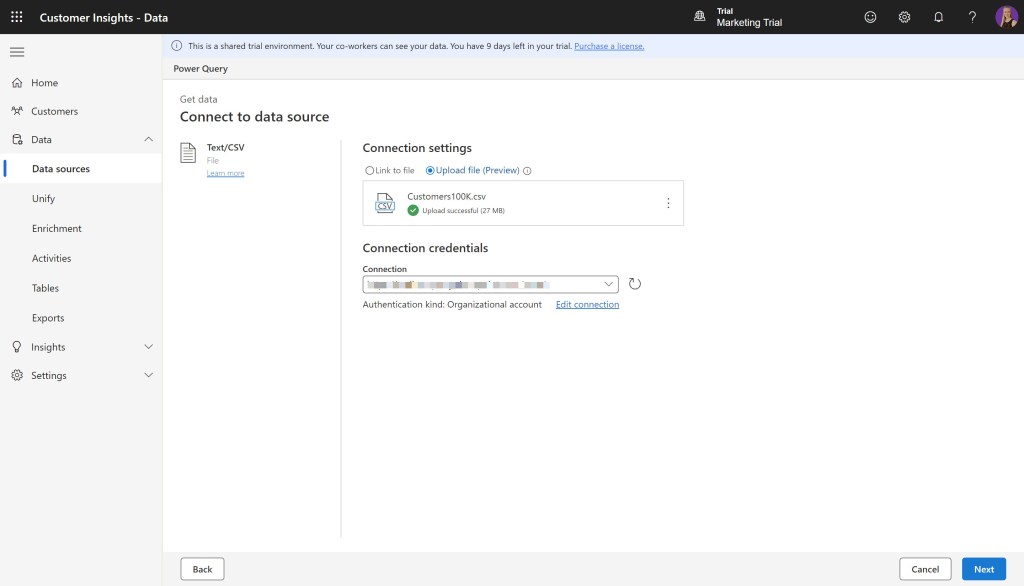
I’ll add a CSV file with MPQ. With Text/CSV file you can either link to a file from your OneDrive, or you can upload the file directly to MPQ.
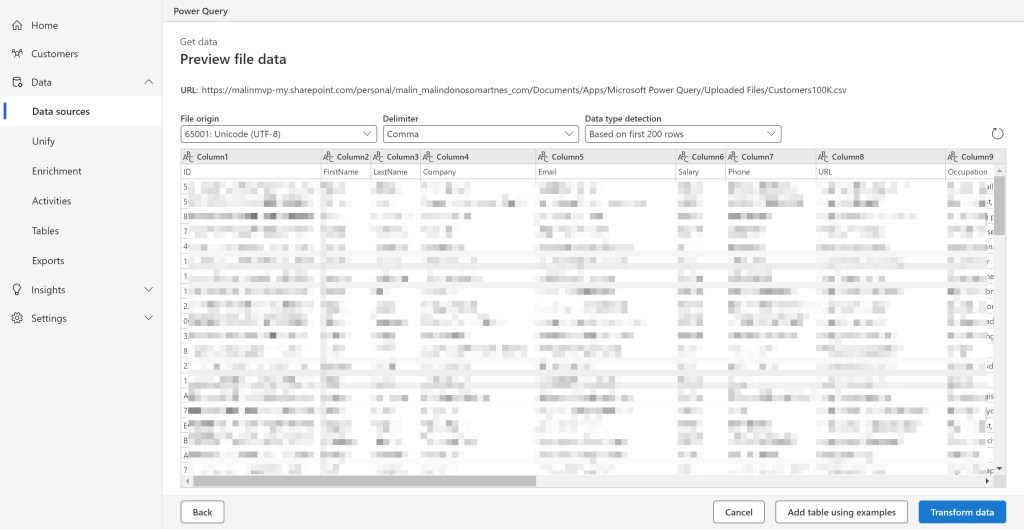
I can preview the data from my file and ensure it’s the correct file and the data looks structured. Next, we’re going to transform the data.
You’re now taken to transform the data, this is where you’re teaching CI-D how your data is structured.
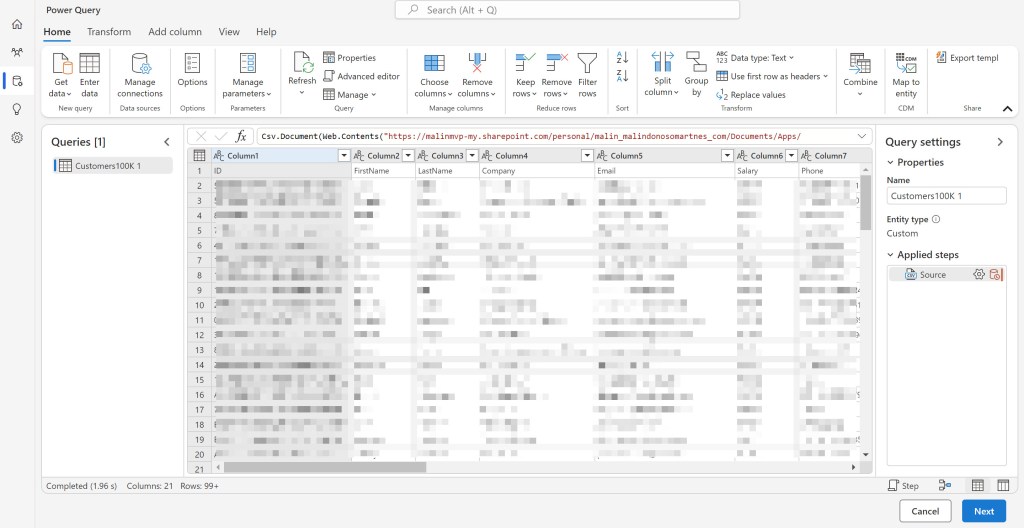
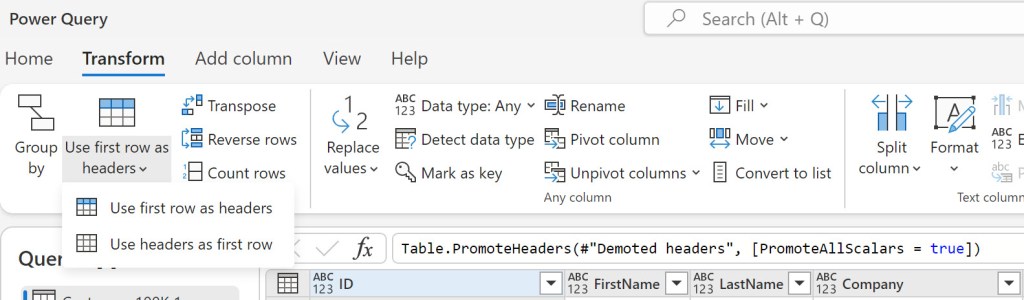
If your data has headers, you should first go to home and select “Use first row as headers”.
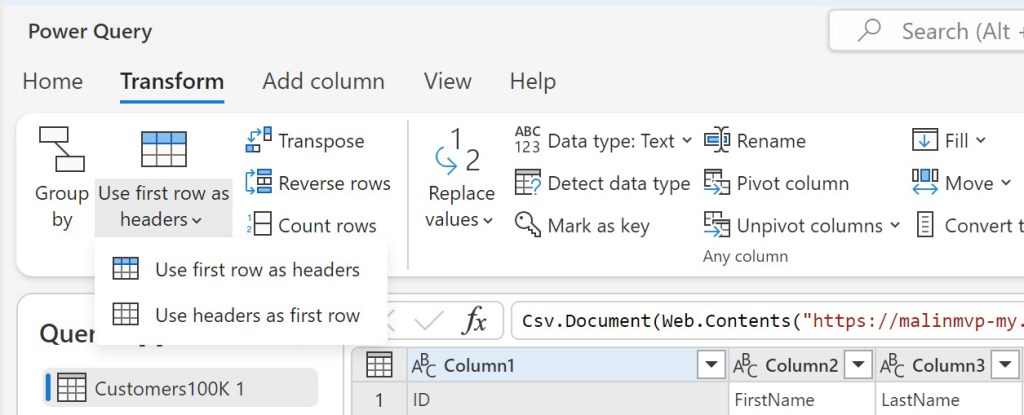
After selecting “Use first row as headers” you can always go back and change it if you realise you didn’t have headers in the data.
Are there other changes you should make to the data? I’ve got a phone number in the data, maybe that should be a whole number and not a text field, no reason for it not to be, is there?
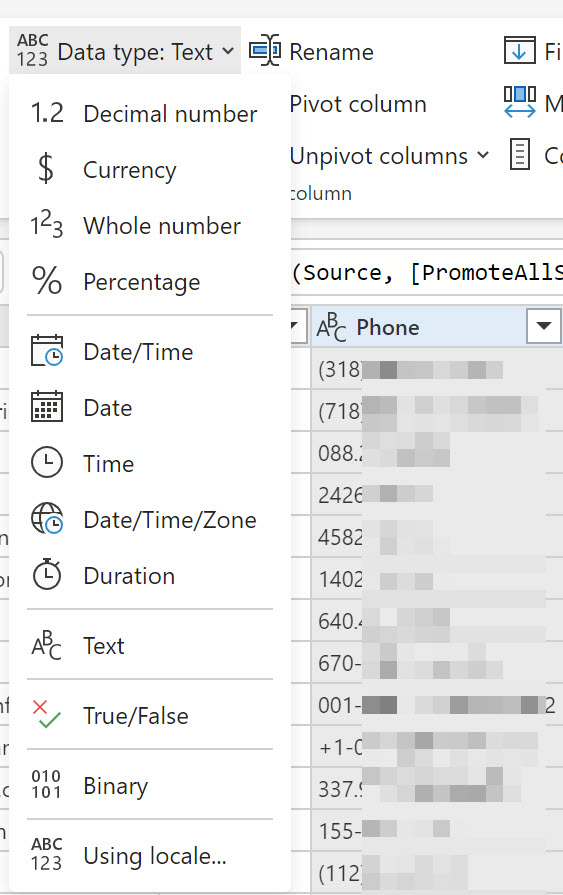
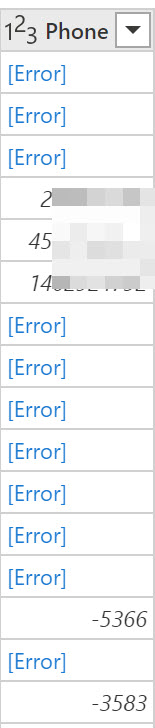
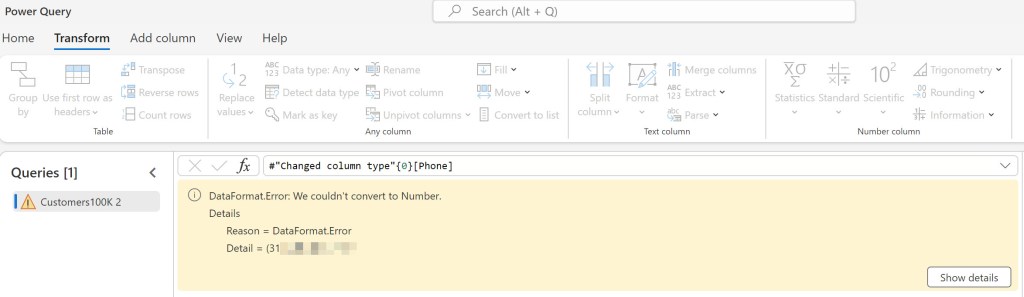
Well, I get this wonderful error message when I do change the data. As you can see in the previous image, I have some numbers starting with (xxx), some with +, and others containing -. This gives me lots of weird errors and strange numbers. I need to clean up all of this data if I want to change the data type and get it into the system the way I want. I can use several tools in MPQ to transform my data.
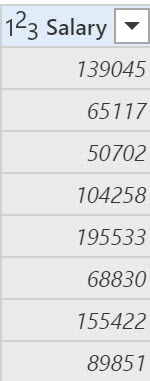
If I change the salary column to numbers, then I can see that the column is properly transformed.
You can also identify which column you want to use as the key.
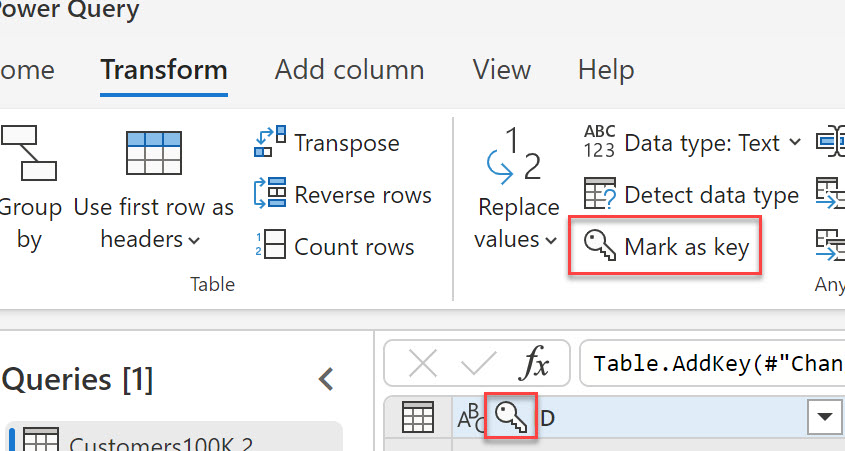
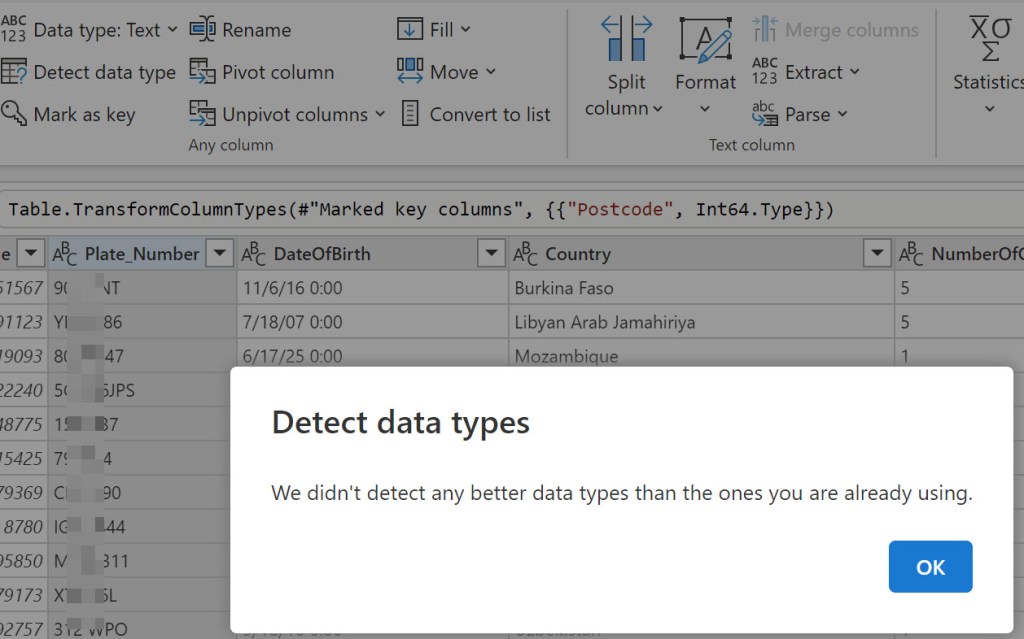
If you’re having issues determining the data type, you can use “Detect data type”. This will either change the data type for you or give you an error message that it can’t detect a better data type.
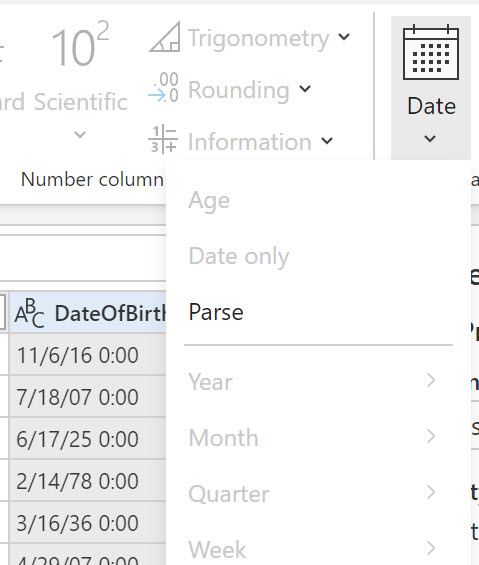
My date of birth column contained both date/year and time, the time was set to 0:00 for everyone, making it impossible to change the data type to date, but there’s a tool to help fix this. You can click on the date button, and select “Parse”, this will remove the 0:00 and leave you with the actual date (please ignore that my data set has dates of birth in the future).
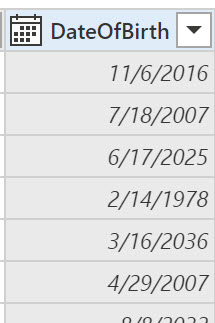
There are so many edits and changes you can and should make to the data you add with MPQ. You have to change the data to get it to the correct formats so that you can use them in your analytics and get the segments and measures you want.
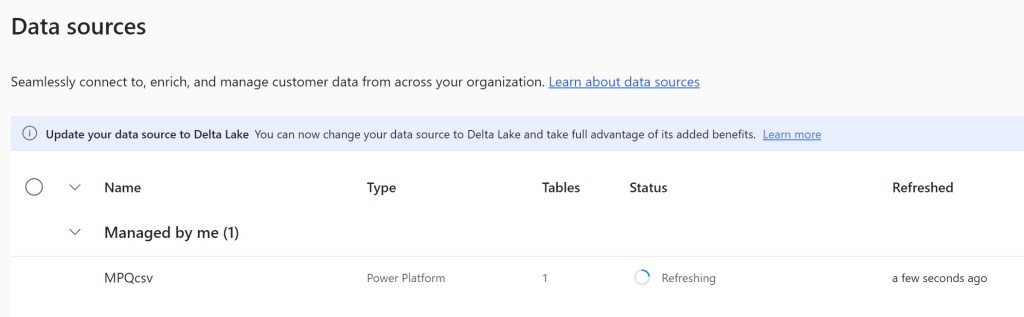
After the data source is added and finished refreshing, you can go to tables and see the tables and columns that have been added from the dataset.
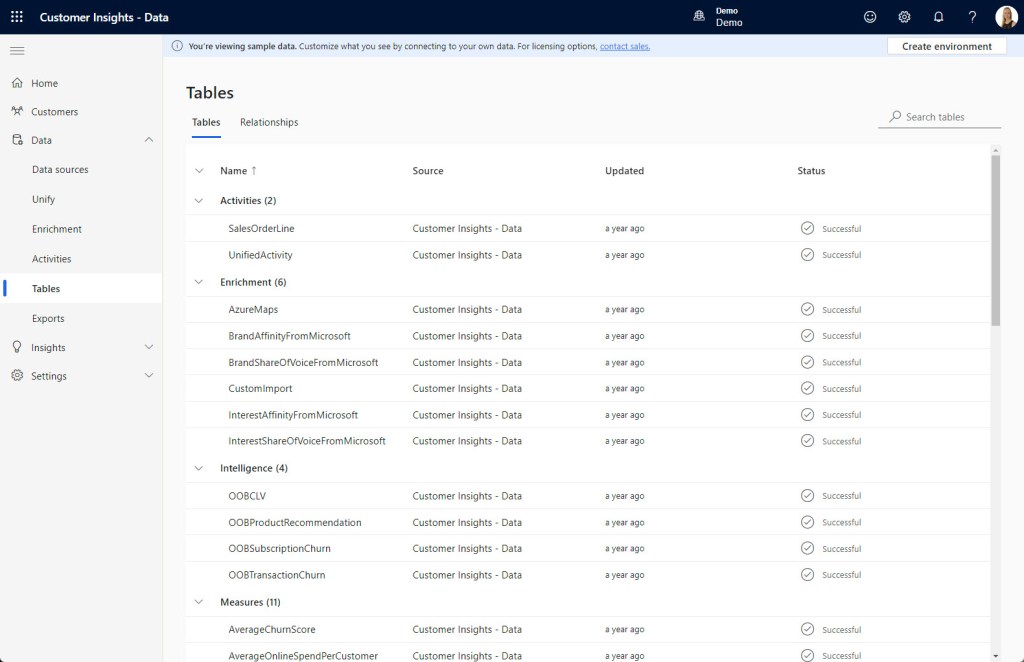
Here you can see the attributes on the tables; the name, source, when it was last updated and the status of the last update.
You can also see the actual data that is in that table.
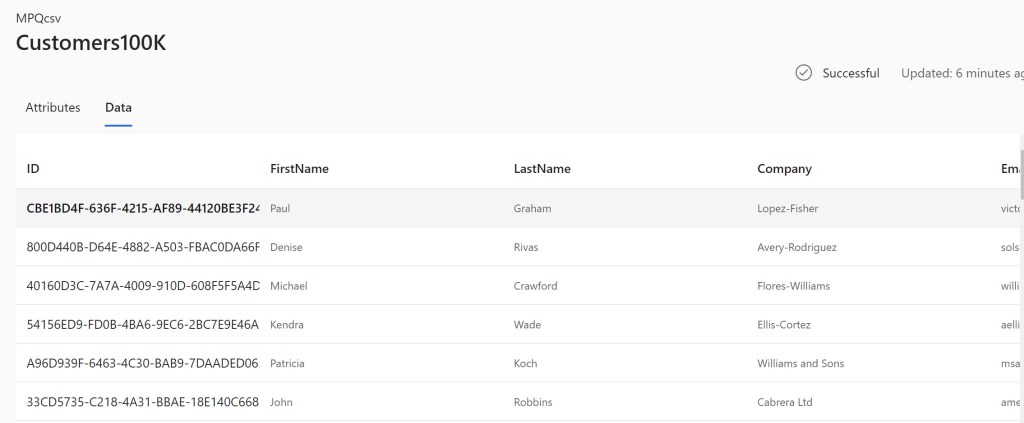
There are a lot of things that could and should be done with your data sources when you connect them to CI-D. Make sure that there’s information in all your columns and that the information is the same type (referring to the phone numbers earlier in this post).

 Malin Martnes
3 thoughts on “MB-260: Transform, cleanse, and load data by using Power Query”